Using the App — Admin
Admins provision. An administrator sets up the structure everyone else works inside — organisations, schools, and classes — and the users and roles that fill them. Admins also review benchmark profiles and immutable audit logs. This guide walks the admin screens in setup order.
Admin home
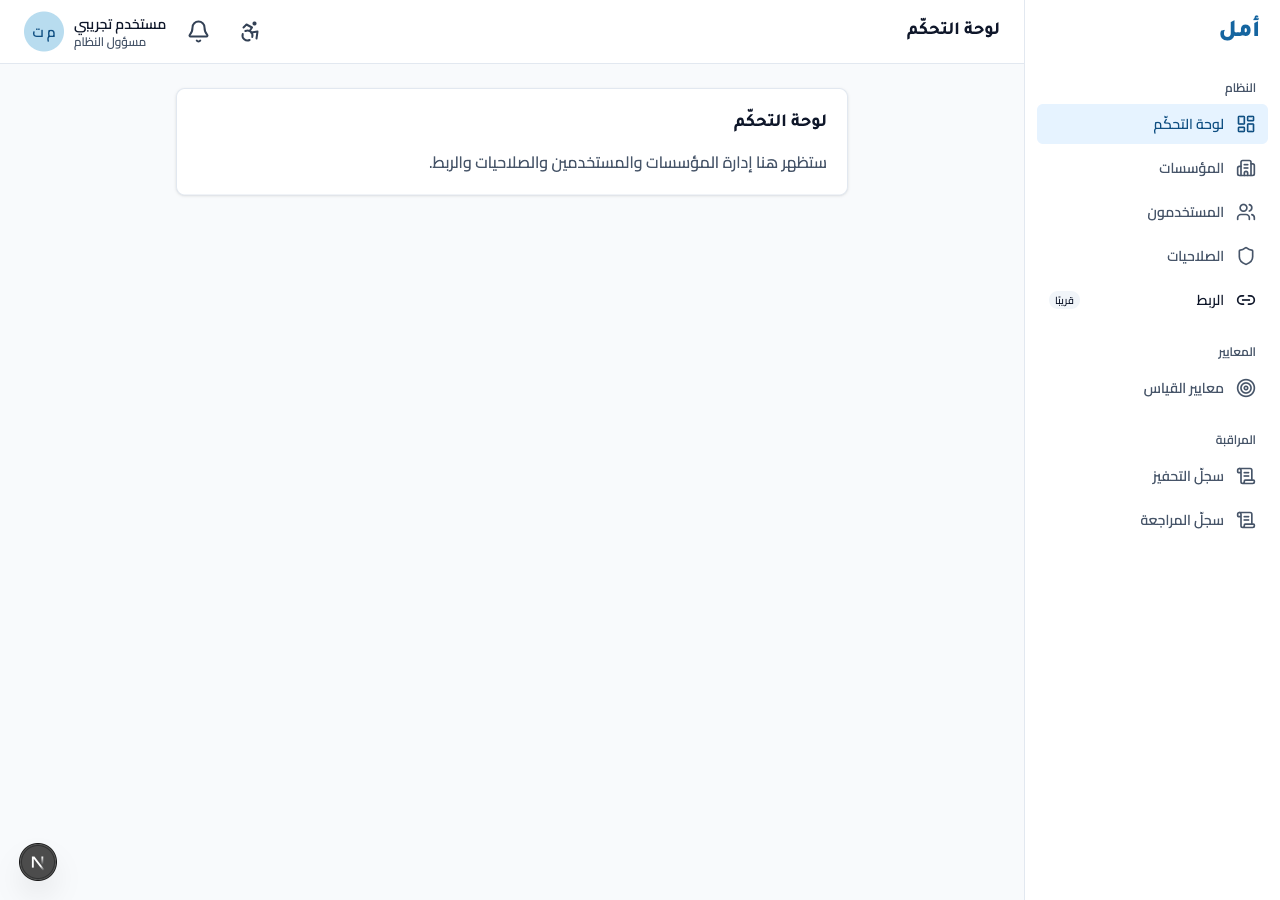
The home screen is the admin landing; the navigation rail gives you every admin area.
Organisations
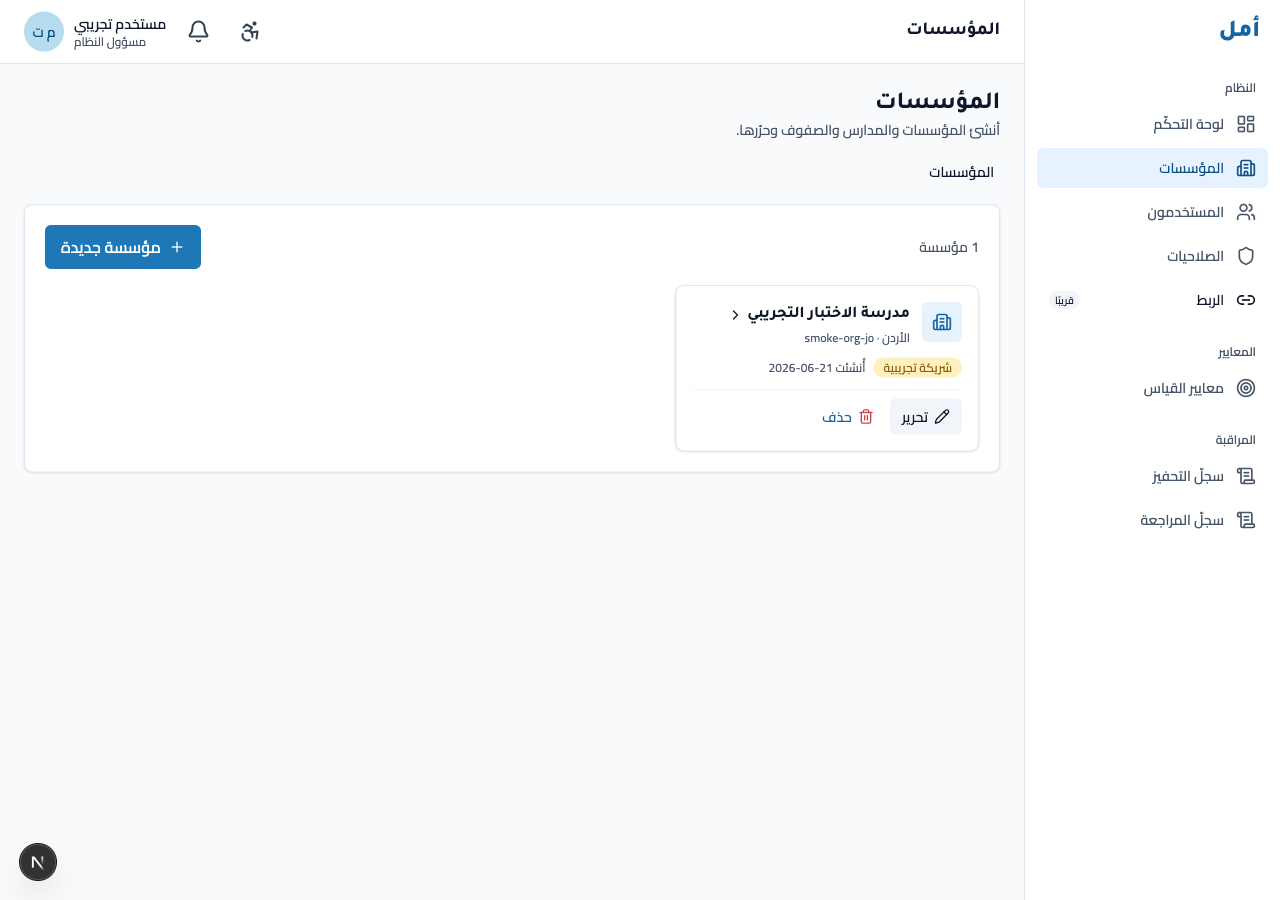
The organisations screen lists the organisations you manage and lets you create a new one.
How to:
- Review the existing organisations.
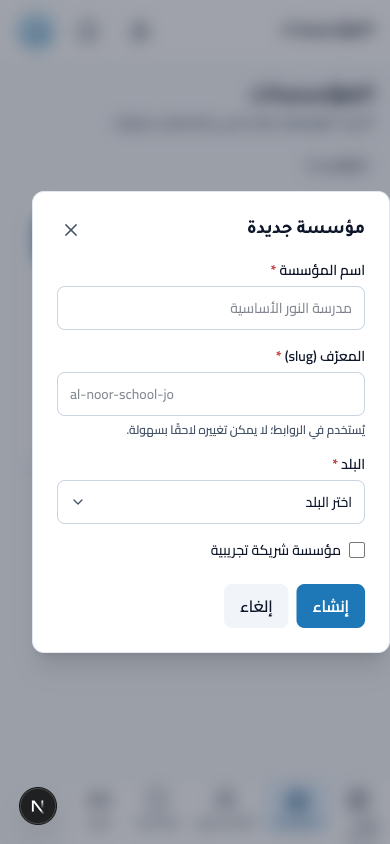
- Click new organisation to open the create form.
- Fill in name, slug, country, and the pilot flag, then save.
A delete control is available per row and always asks for confirmation before anything is removed.
Users
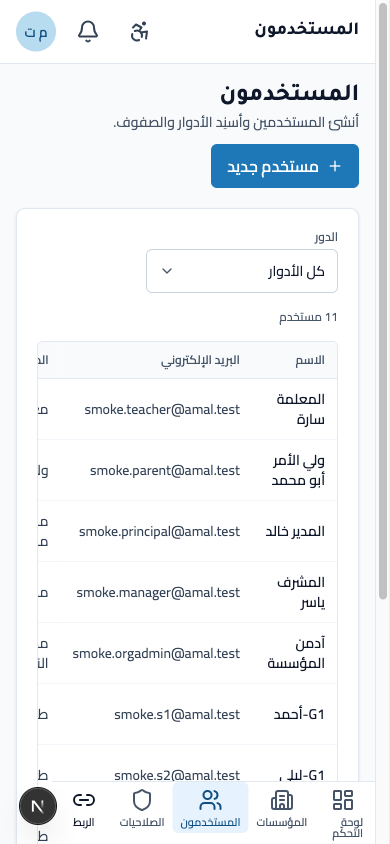
The users screen lists everyone in scope and lets you create new users.
How to:
- Review the user list.
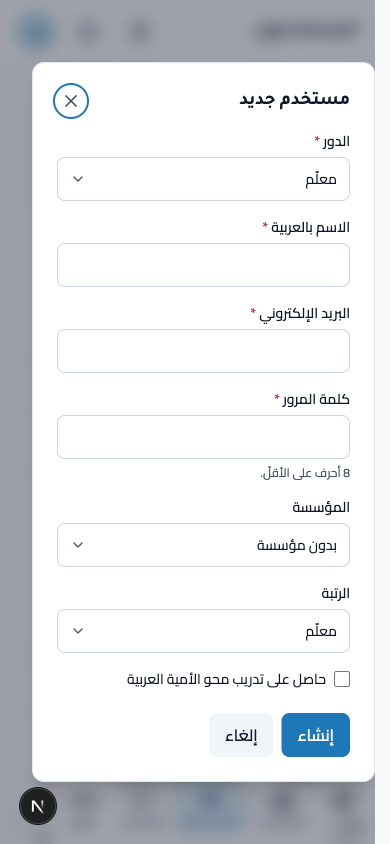
- Click new user to open the create form.
- Choose a role, enter the Arabic name, email, and a password (8+ characters), pick the organisation, and set the rank, then save.
Roles
The roles screen is a read-only matrix of permission codes against the personas — a clear reference for who can do what.

Benchmark profiles
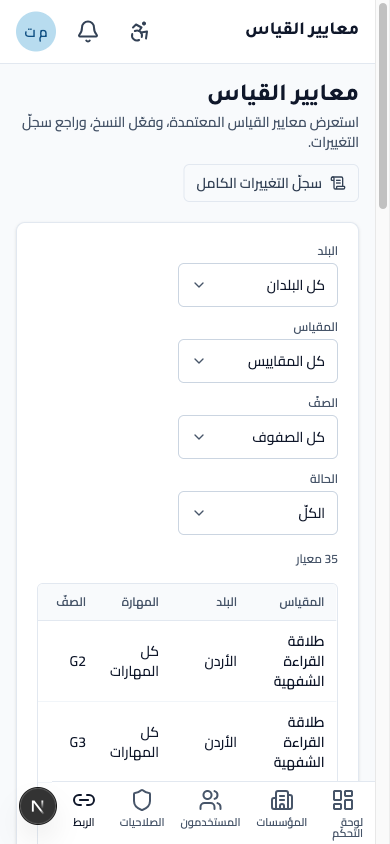
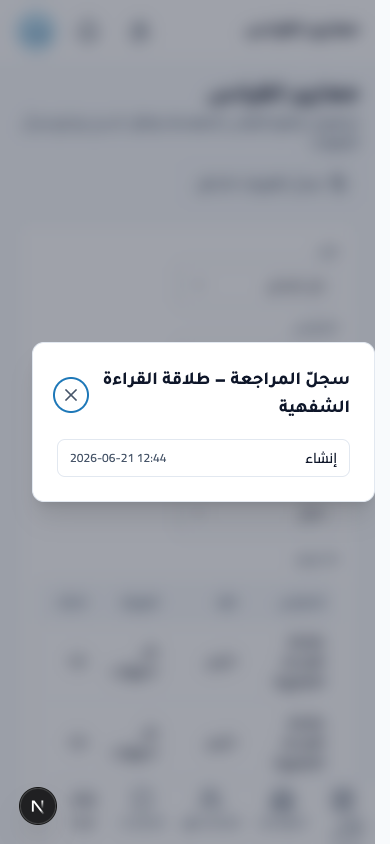
The benchmark profiles screen lists the per-country, per-skill benchmark profiles. Each row has a history dialog. For an organisation admin this screen is read-only (editing and activating benchmarks is a super-admin capability).
How to:
- Use the filters to narrow the list.
- Click a row’s history to see its change record.
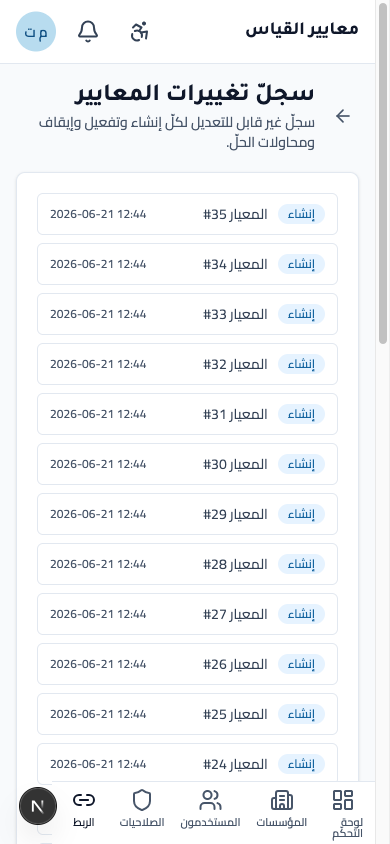
The companion benchmark audit log shows immutable creation entries — an append-only record.
Audit log
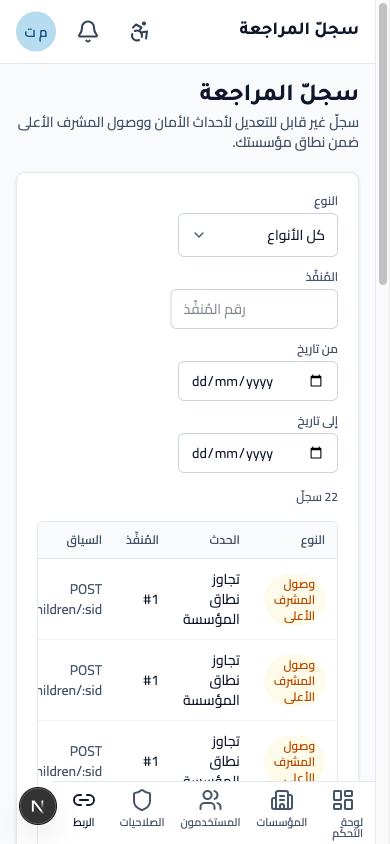
The audit log is an org-scoped, immutable record of sensitive events, including security boundary violations and platform operator scope-override actions.
The log is secret-free by design: raw IP addresses, user agents, request IDs, and the content of
any blocked value are never returned. Only the character-length of a blocked value
(attemptedValueLength) appears in each row, so you can see that an attempt occurred without the
log itself becoming a source of sensitive data.
How to:
- Read the records. Each entry is immutable; nothing can be edited or deleted.
- Use the filter bar to narrow by:
- Event type:
security_attempt(a forbidden-value or sensitive-note attempt) orsuper_admin_bypass(a platform operator reading across organizations). - Actor: enter a user ID to show only that actor’s events.
- Date range:
fromandtoISO date bounds (both inclusive; an unparseable bound is silently dropped rather than returning an error).
- Event type:
- Page through results using the pagination controls (up to 200 rows per page, default 50).
A super-admin (platform operator) can see records across all organizations. Every time a super-admin reads this page, the access is itself appended as a bypass-log entry visible to other super-admins.
Gamification (replay)
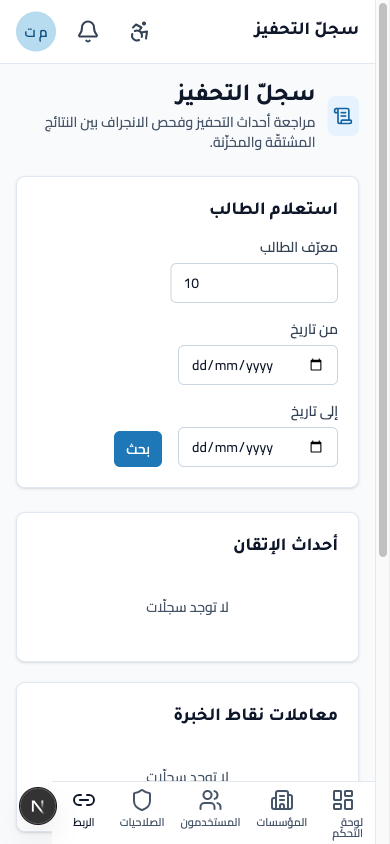
The gamification screen is a drift / replay panel: query a student to inspect their mastery-event history and, if needed, run a deterministic replay.
How to:
- Enter a student ID and search.
- Review the drift / replay panel; use run replay if a deterministic re-computation is needed.
Integrations
The integrations area is marked coming soon and is intentionally disabled in the sidebar until it is ready.
LMS import
The LMS import wizard connects a Google Classroom account, pulls course and roster data, and creates Amal users and class enrollments in one transaction.
How to:
- Go to Admin and select LMS import from the navigation.
- On the connect step, authorise your Google Classroom account.
- On the select step, choose the courses you want to import.
- On the review step, inspect each row and resolve any conflicts (name mismatches, duplicate emails) before continuing.
- On the confirm step, review the summary counts, then commit.
- The done screen confirms the import. Users, enrollments, and teacher assignments are all created in a single transaction.
Committing an import creates users, class enrollments, and ClassTeacher assignments together. If any row fails validation the whole batch is rejected and nothing is written.
On phone and tablet
- On a wide screen the navigation rail sits on the right.
- On a phone or tablet dense tables (users, roles, benchmark profiles, audit log) sit inside contained horizontal-scroll regions, so the page itself never overflows — you scroll the table, not the whole screen.